
DIY 11.6" Portable Screen with Built-in Battery


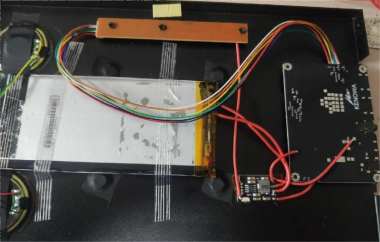
If you're interested in DIY-ing an 11.6-inch portable screen with a built-in battery, you might want to check out this article.
Portable screens always need to be powered by a power bank, which can be annoying. If you feel the same way, you can follow the DIY process in this article.
The main items for this DIY are shown in the picture below. The micro USB can provide 5V directly, and the small hole below is for 12V.
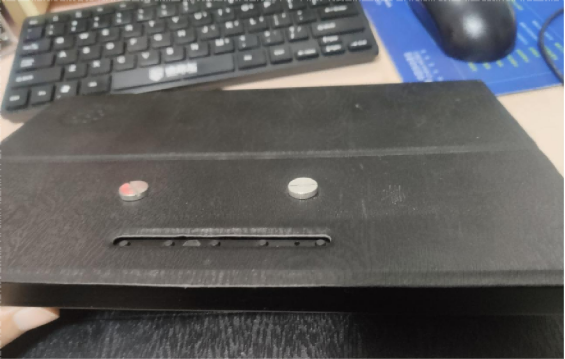
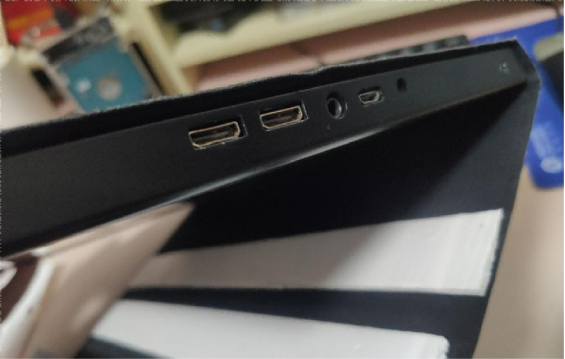
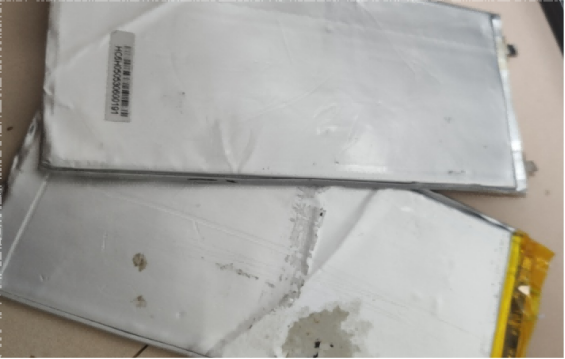
If you have an old tablet lying around, you can directly use the battery from that tablet.
In addition, you'll need a small charge-discharge module like the one shown below. It's a 3.7V to 5V module, and 5V 2A works perfectly.
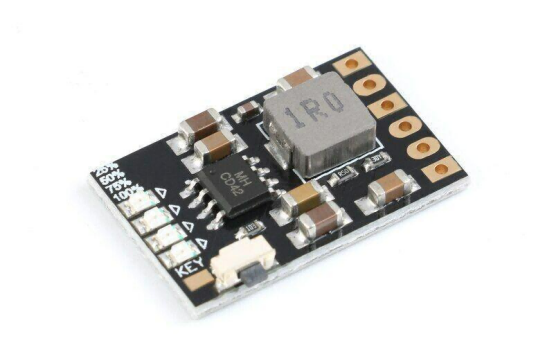
As shown in the picture, the basic specifications of this charge-discharge module are:
1. VIN: Charging port positive input + (DC4.5V-5.5V, recommended DC 5V)
2. GND: Charging port negative input -
3. GND: Lithium battery -
4. BAT: Lithium battery +
5. GND: Output negative -
6. VOUT: Output positive +
7. KEY: Output enable trigger pin (low pulse trigger)
8. In discharge mode (KEY function does not work in charging mode), trigger the KEY pin once to turn on the output; trigger the KEY pin twice consecutively to turn off the output.
9. When a load is first connected, the output will automatically turn on. If the load is less than 50mA, the output will turn off after 30 seconds; if the load is greater than 50mA, the output will stay on.
10. Charging and discharging at the same time is allowed (note: at this time, the output voltage is >4.7V or <5V).
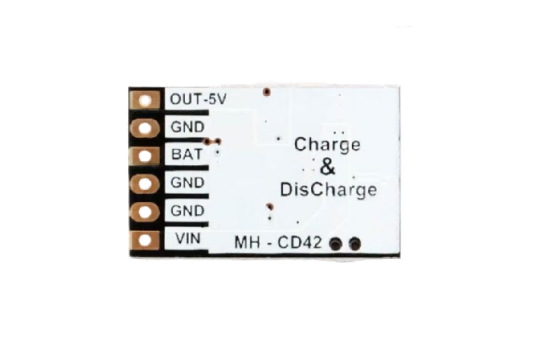
The general idea is to cut the positive line of the original micro USB input. Connect one end to VIN of the module and the other end to VOUT. Since they share a common ground, you only need to fly a single wire.
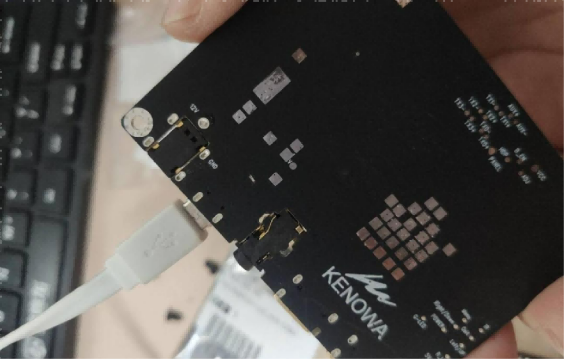
The button on the module triggers the output, so you can run a wire to the screen's button board. Remove the original power jumper and replace it with the module's trigger button. Press once to power on, press twice to power off.
The completed setup looks like the picture below.
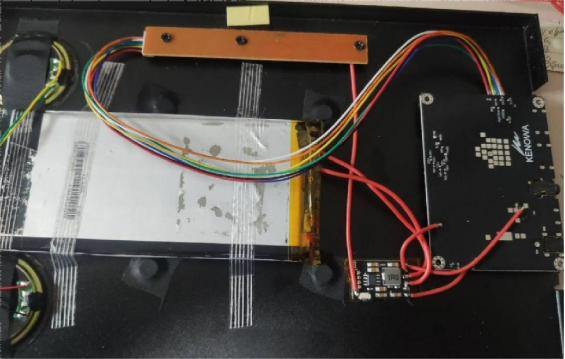
Once installed, you can try turning it on.
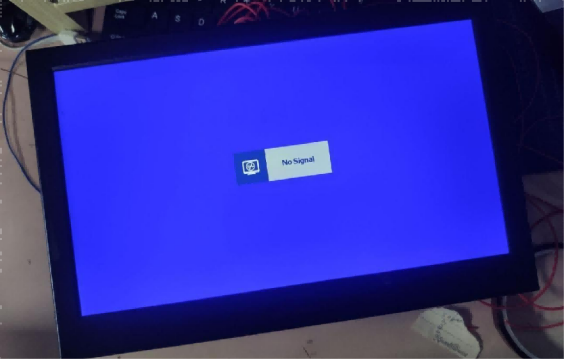
Now you only need to plug in a Mini HDMI cable.
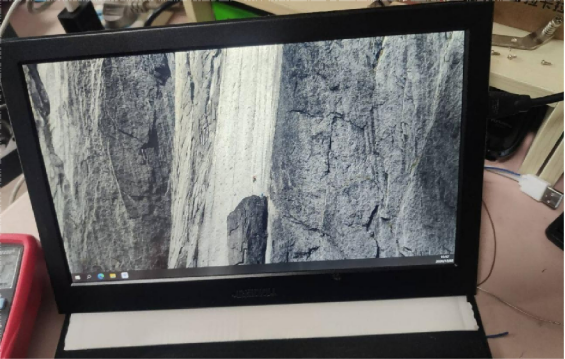
Done.


